> For the complete documentation index, see [llms.txt](https://tutorials.kuasa.io/getting-started/llms.txt). Markdown versions of documentation pages are available by appending `.md` to page URLs; this page is available as [Markdown](https://tutorials.kuasa.io/getting-started/kuasa-campaigns/ai-chatbot/setup-ai-chatbot/old-create-ai-chatbot-item-in-kuasa.md).
# (Old) Create AI Chatbot item in Kuasa
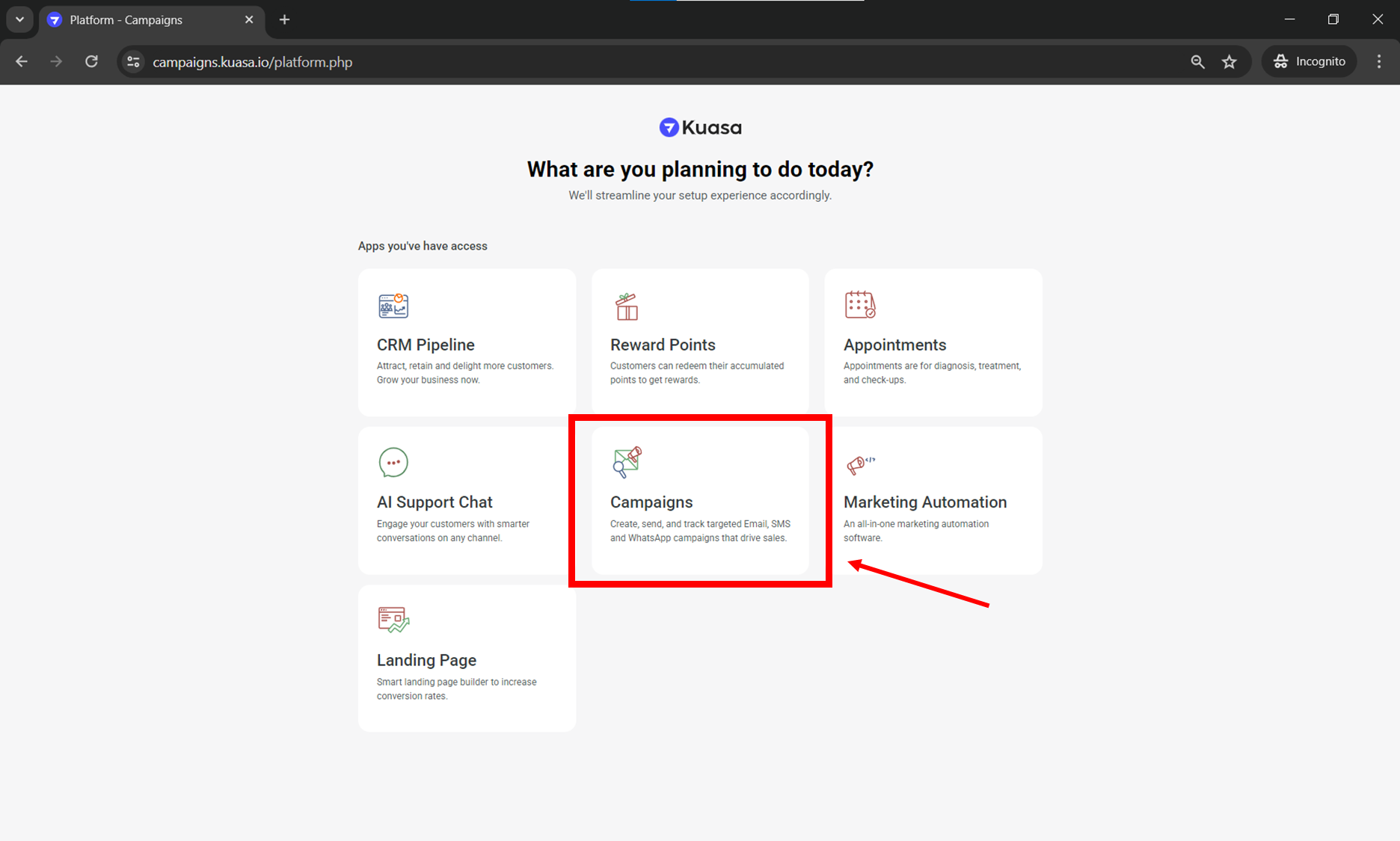
1. Login to your Kuasa account via .
2. Click **Campaigns.**
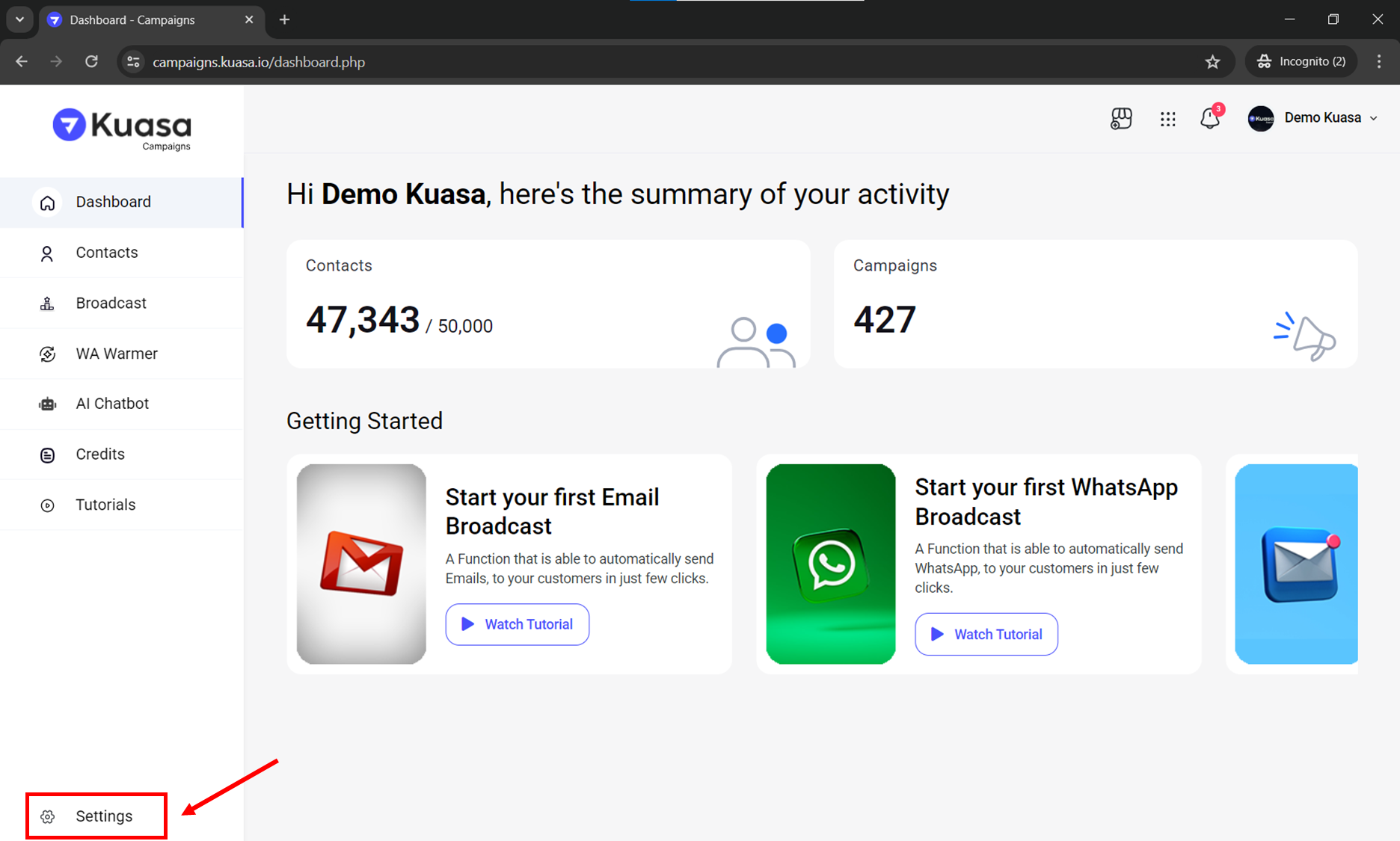
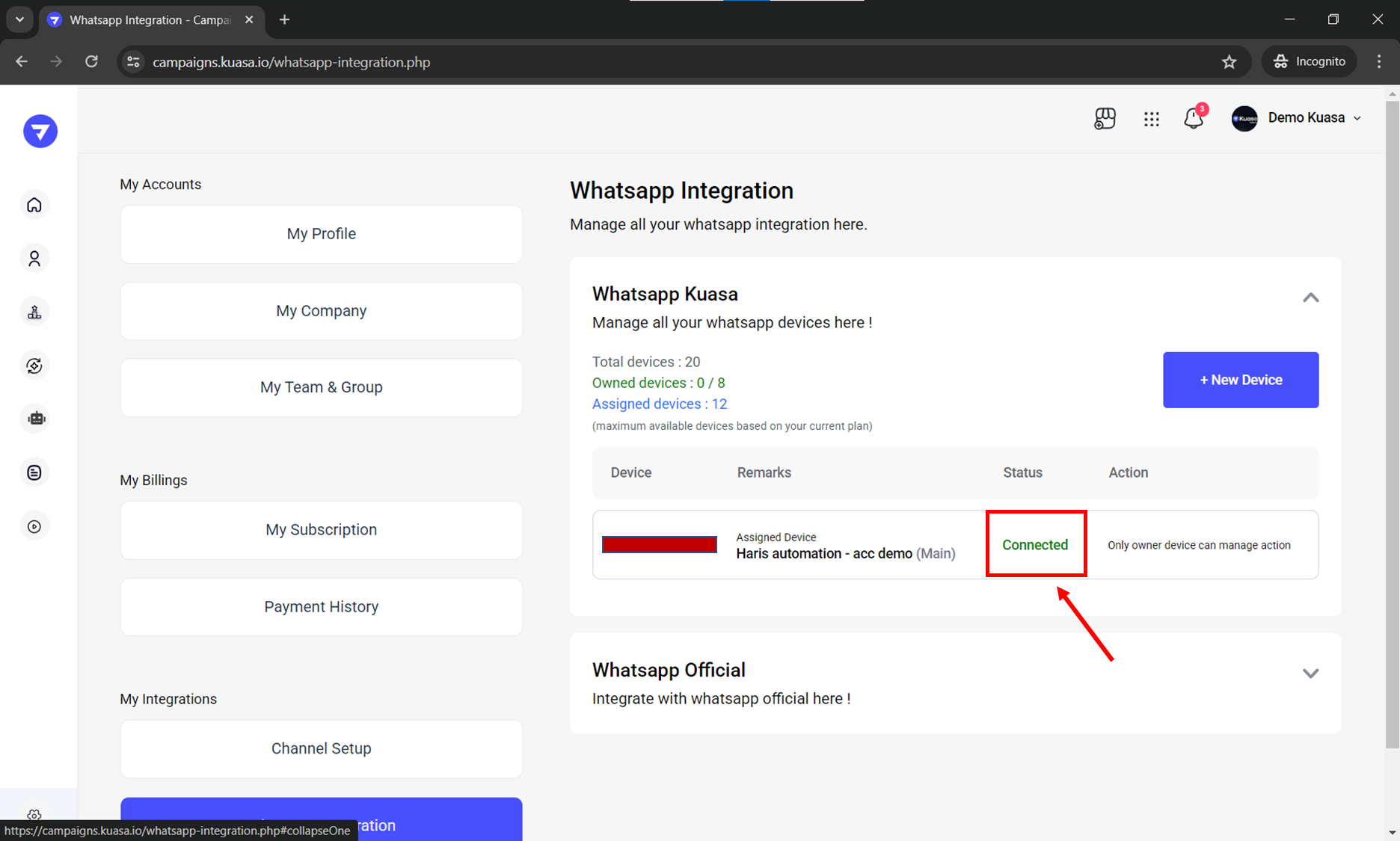
3. Make sure that your WhatsApp device is connected to your Kuasa account. You may check the connection on your device settings.
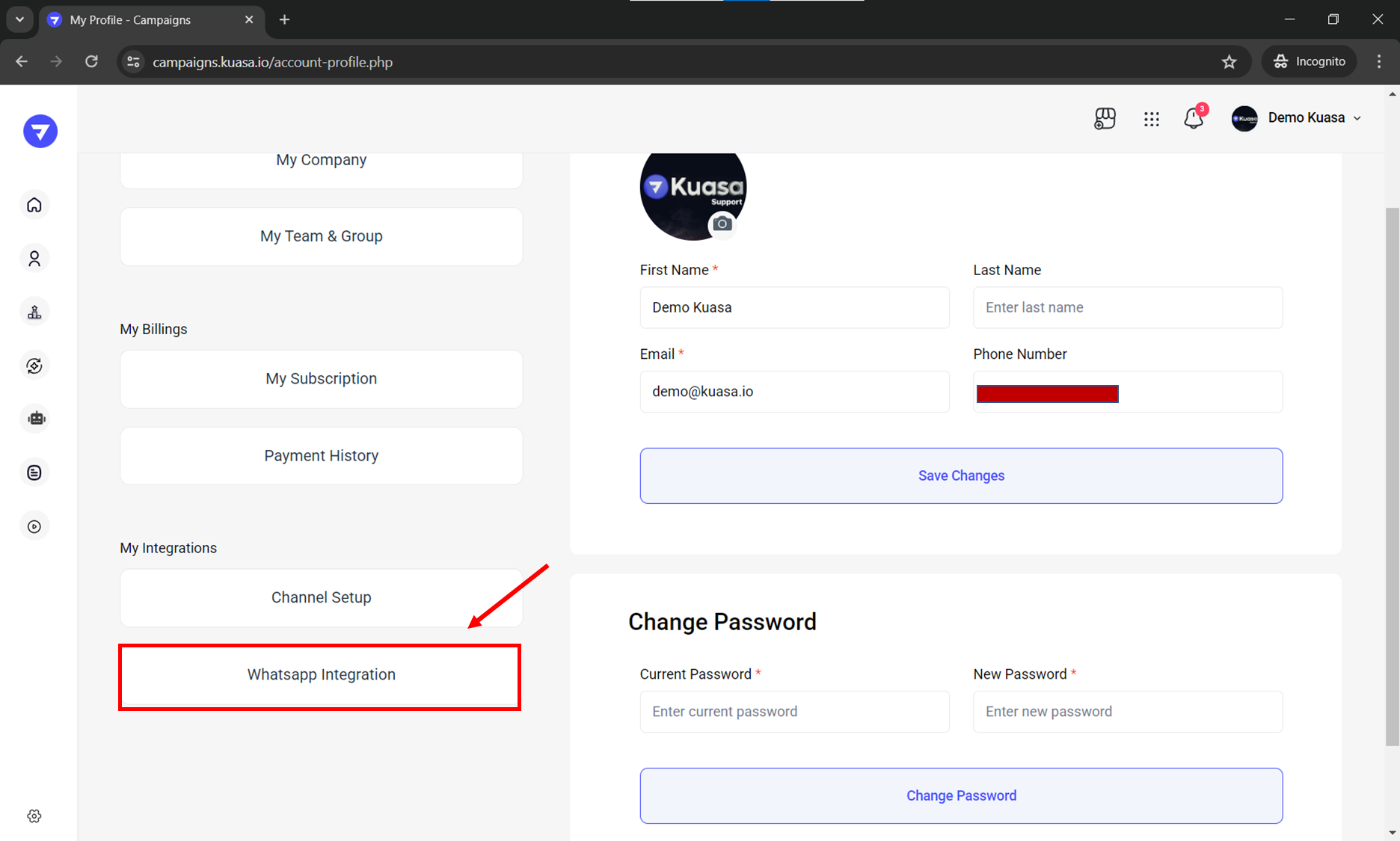
4. Click **WhatsApp Integration**.
5. Make sure the connection is **Connected**.
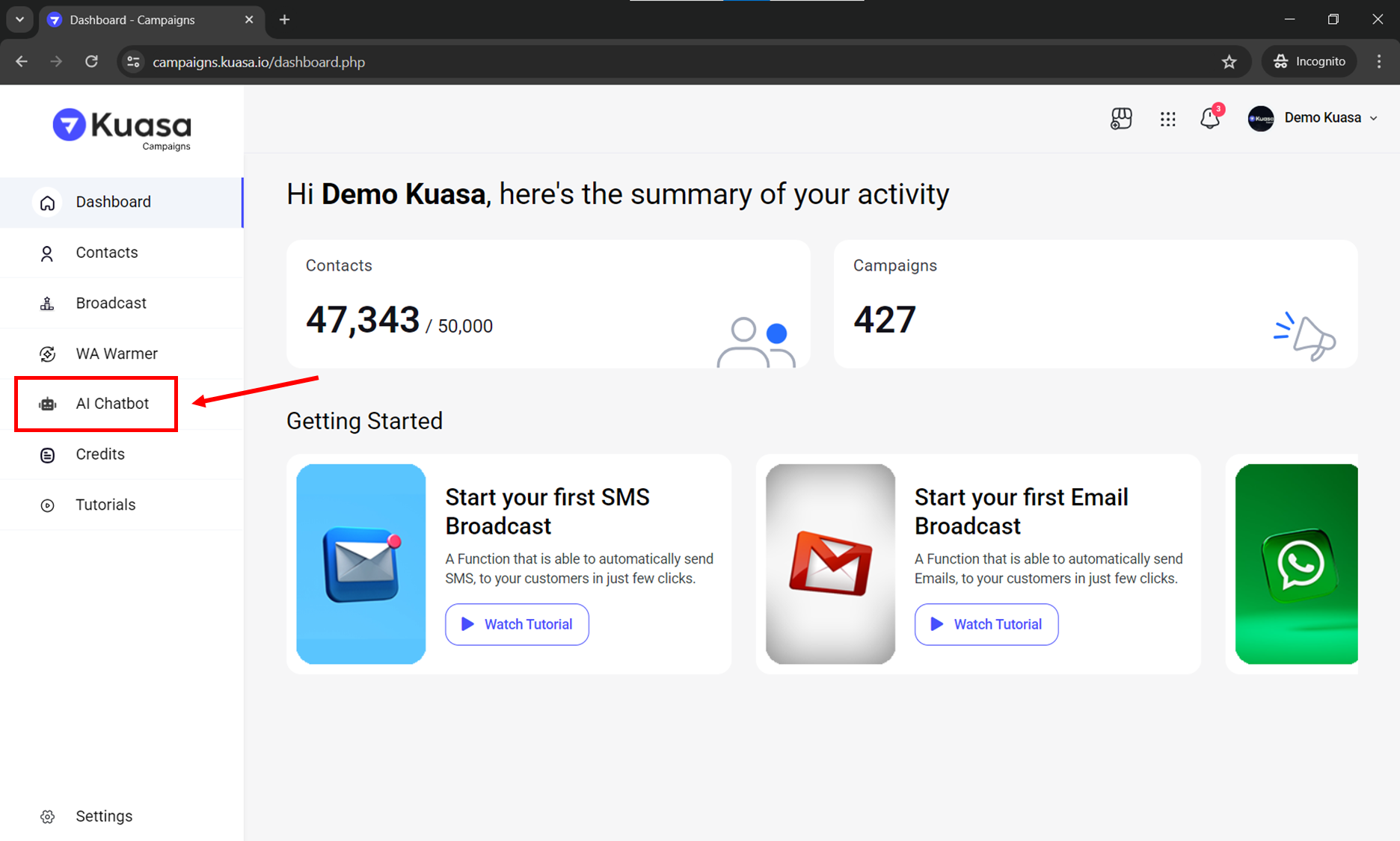
6. Click **AI Chatbot** on left side of your account.
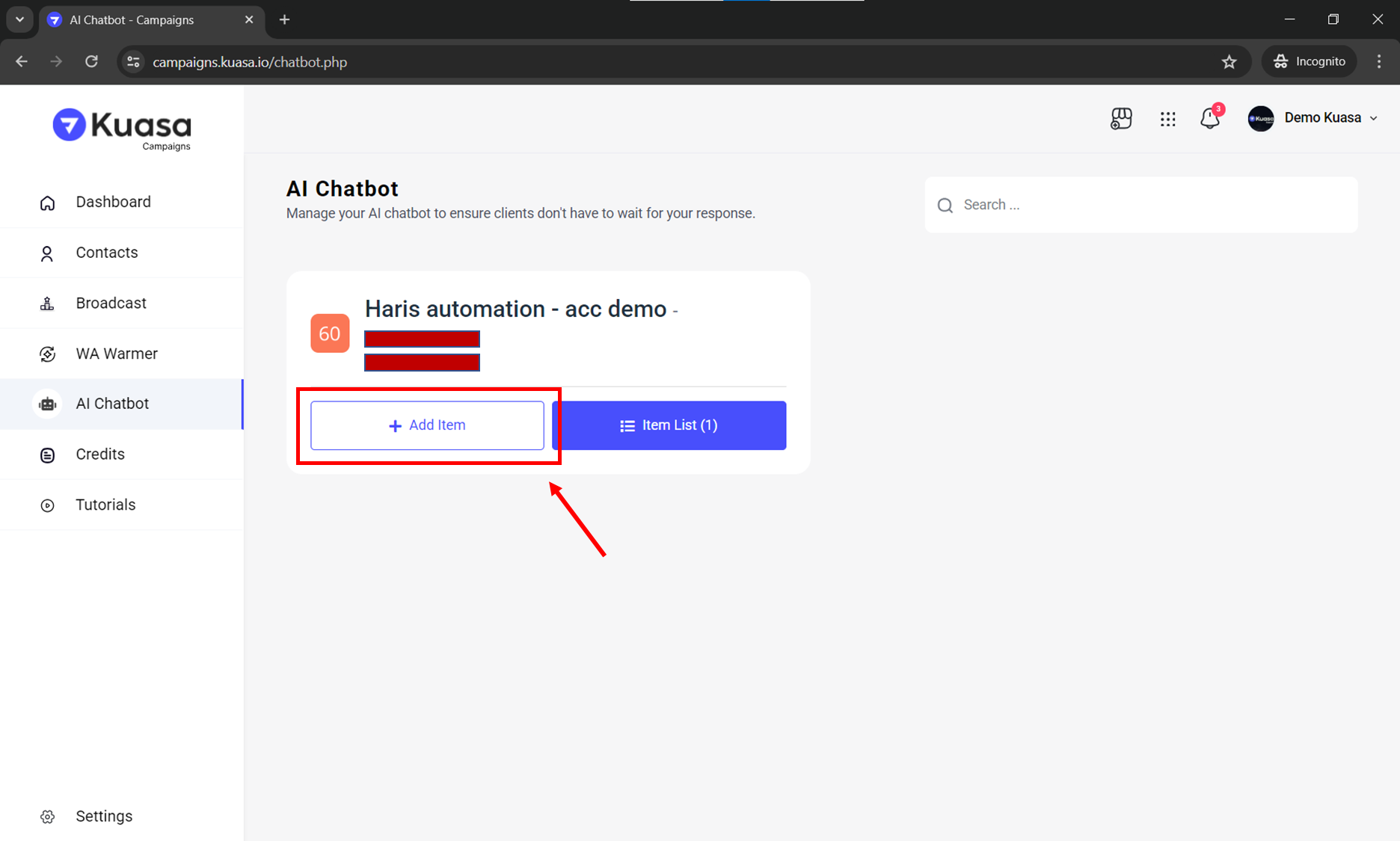
7. Click **Add Item**.
8. You need to set the setup for your AI Chatbot:
* **Status**: Enable
* **Name**: Insert you AI name
* **Keywords**: Any keyword to activate your AI Chatbot
* **Image**: This part is only applicable if you select 'Not Use AI'. You can upload one image per item.
* **Caption**: As prompt to your AI or Chatbot
* **Not Use AI**: The caption will be sent.
* **Use AI**: AI will be activated to answer your customers.
(**Note:** The 'Use AI/Not Use AI' feature can only be set once per item. Please ensure the setting is correct before confirming.)
Then, you may click **Add New** button.
**Note:** Only one 'Use AI' item can be created for each WhatsApp number.