> For the complete documentation index, see [llms.txt](https://tutorials.kuasa.io/getting-started/llms.txt). Markdown versions of documentation pages are available by appending `.md` to page URLs; this page is available as [Markdown](https://tutorials.kuasa.io/getting-started/kuasa-campaigns/ai-chatbot/setup-ai-chatbot/setup-api-key-in-kuasa.md).
# Setup API Key in Kuasa
**Note:** You need to setup the API Key for each phone number use for AI Chatbot. You may use the same API Key
1. Login to your account via .
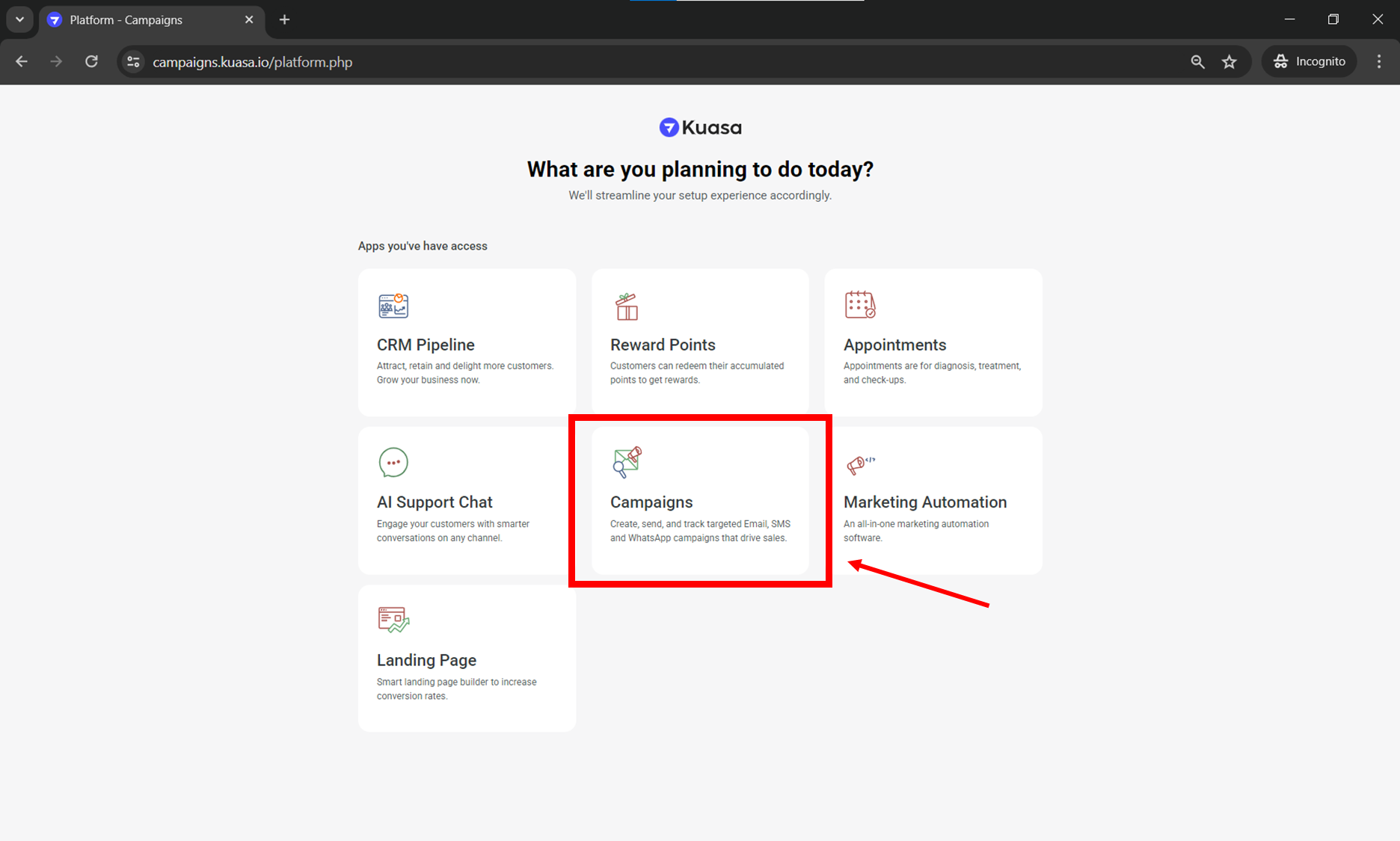
2. Click **Campaigns.**
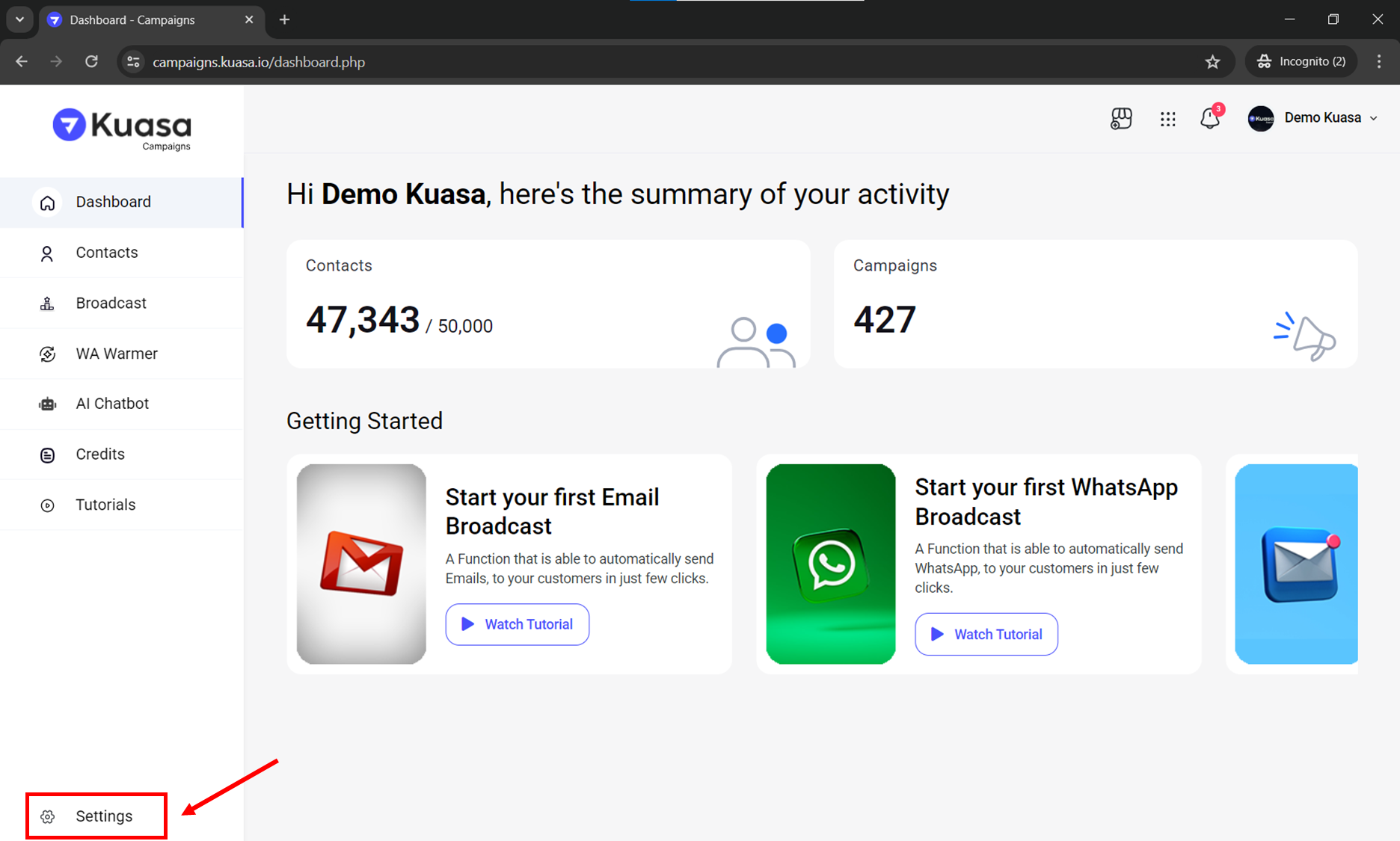
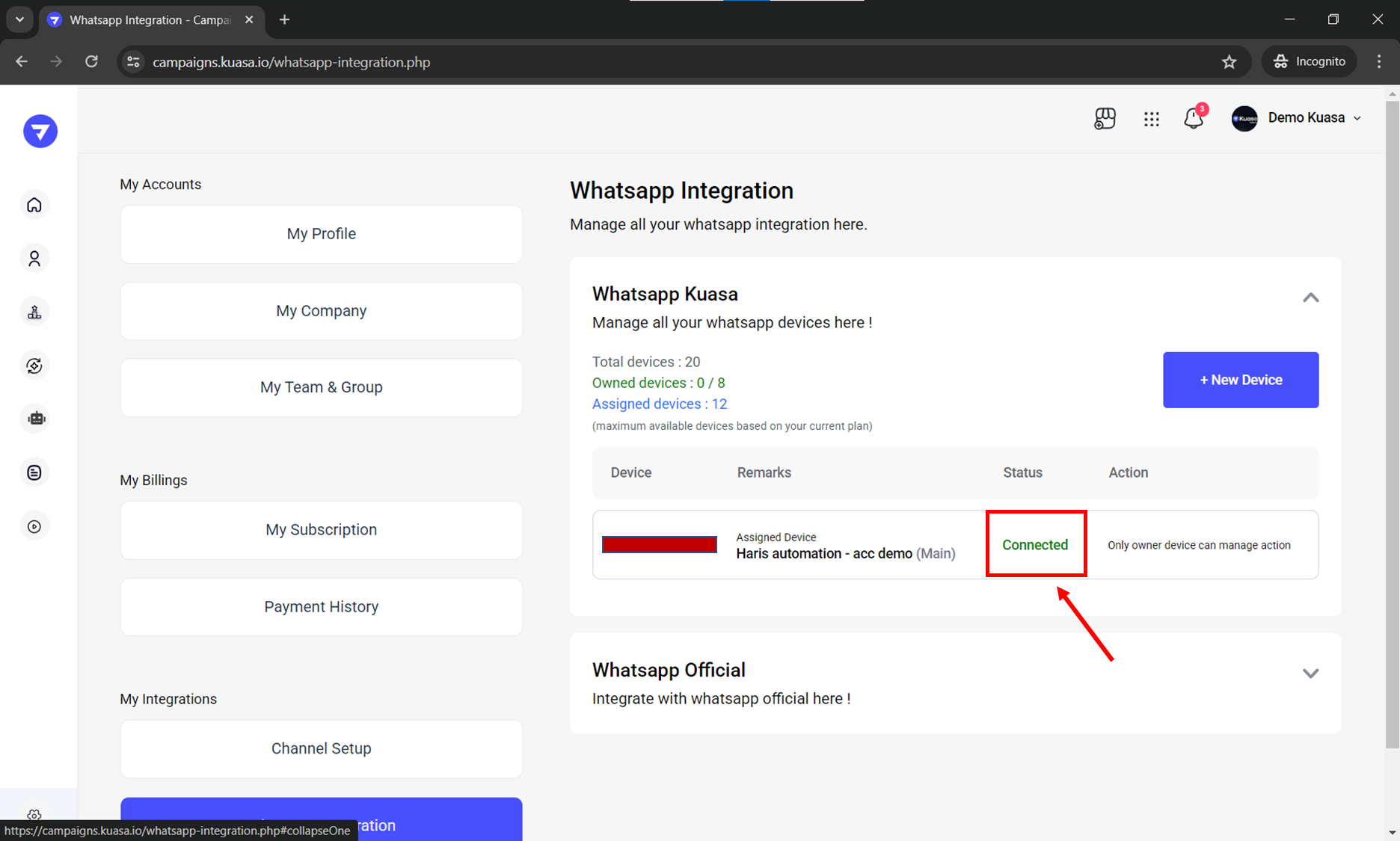
3. Make sure that your WhatsApp device is connected to your Kuasa account. You may check the connection on your device settings.
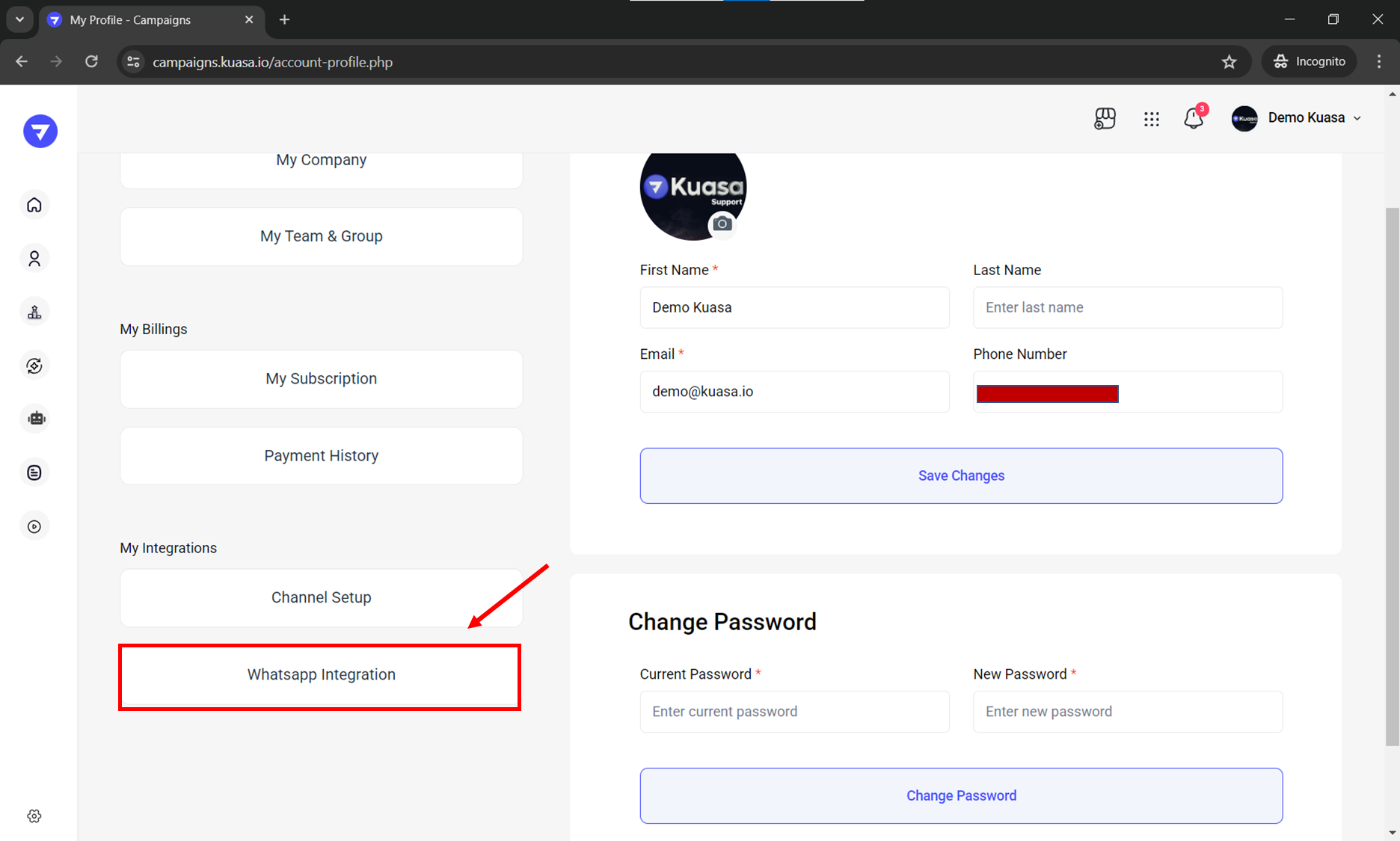
4. Click **WhatsApp Integration**.
5. Make sure the connection is **Connected**.
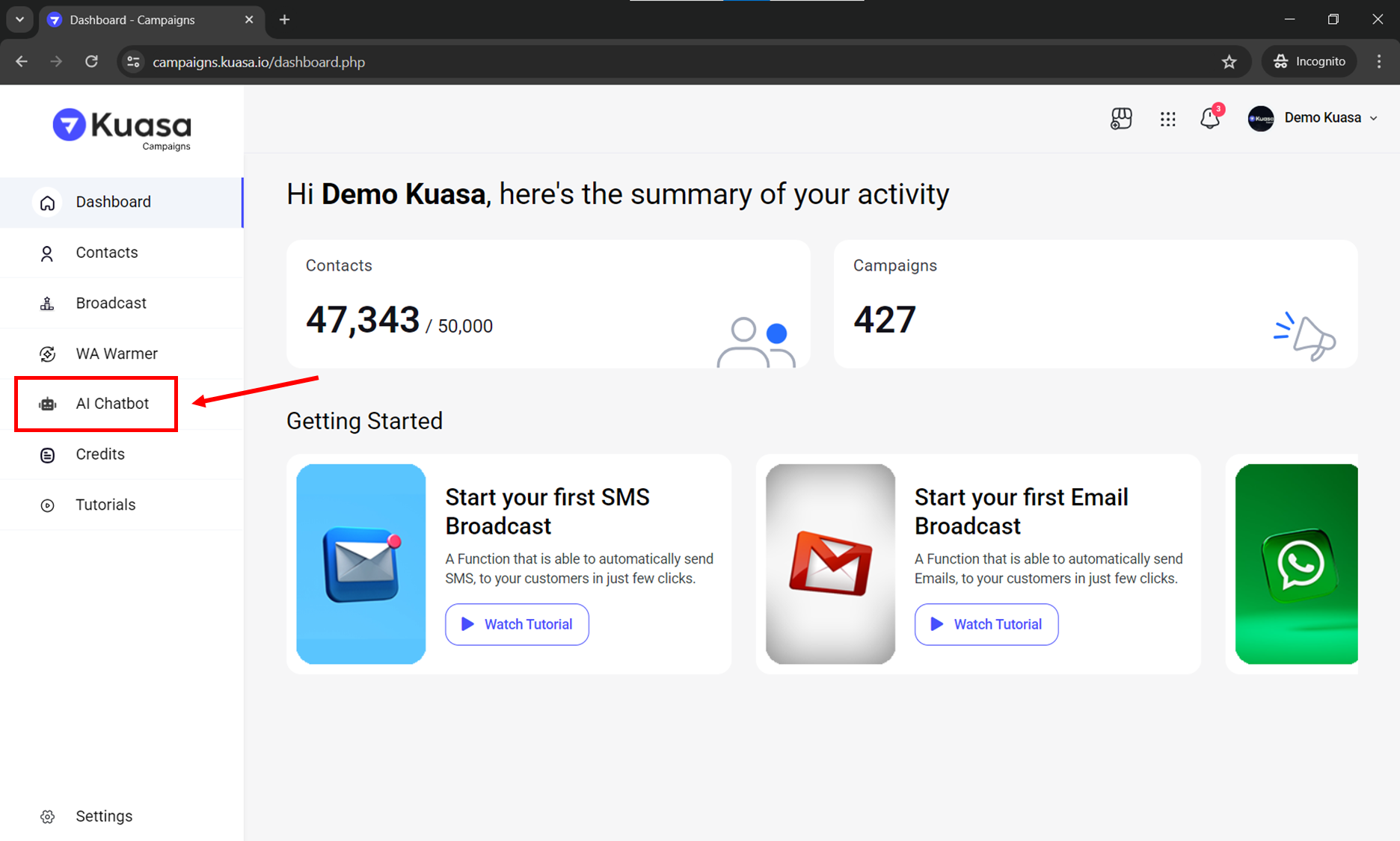
6. Click **AI Chatbot** on left side of your account.
7. Click **Item List**.
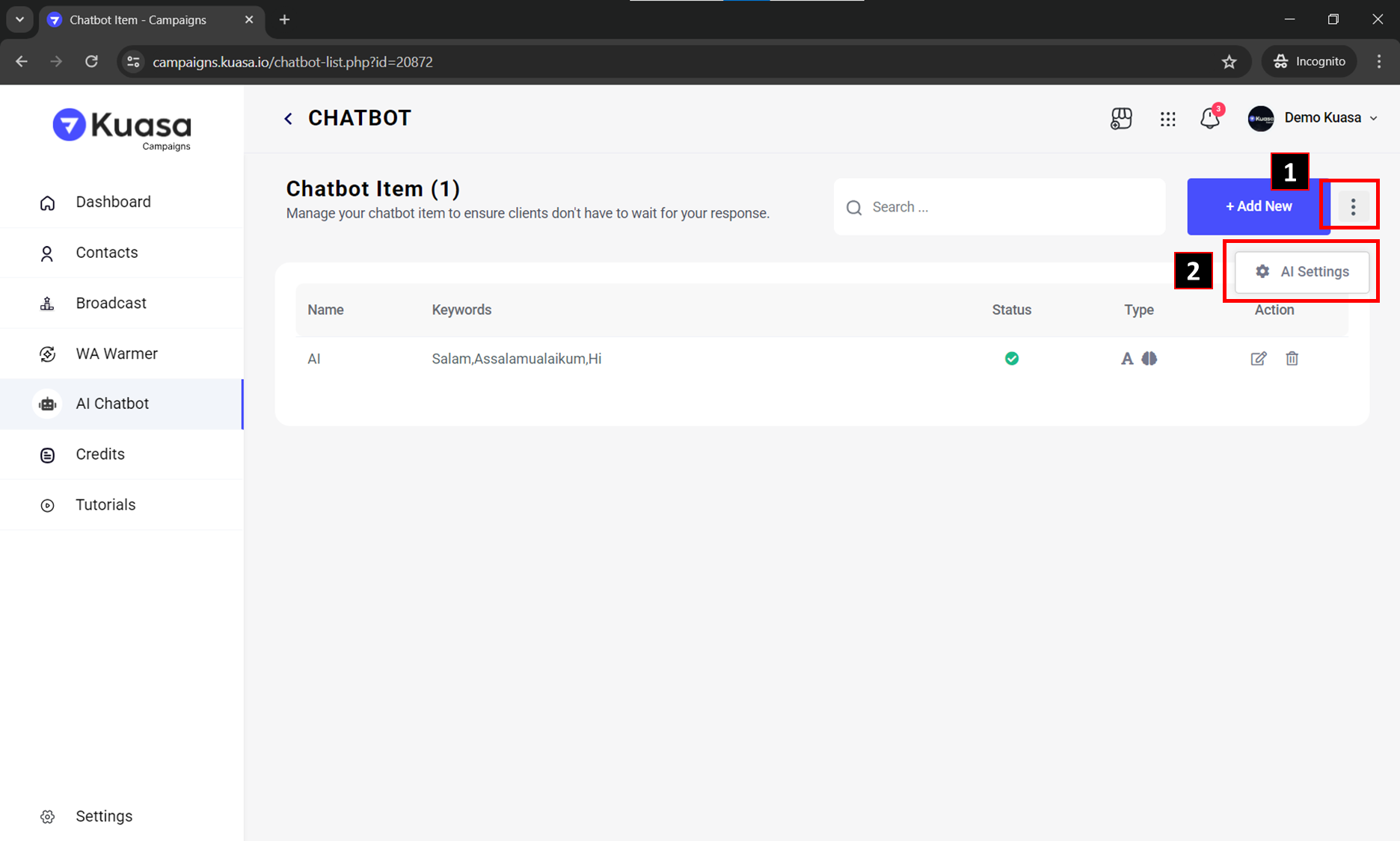
8. Click the **triple colon** as instructed in the picture below and then, click **AI Settings**.
9. Enter the **API Key** you created in OpenAI. (All items and API keys will be lost if the device is deleted. Please save your API keys and prompts elsewhere as a backup.)
10. Click **Save Changes**.
You can now start creating item for your AI Chatbot.