> For the complete documentation index, see [llms.txt](https://tutorials.kuasa.io/getting-started/llms.txt). Markdown versions of documentation pages are available by appending `.md` to page URLs; this page is available as [Markdown](https://tutorials.kuasa.io/getting-started/kuasa-campaigns/settings/how-to-set-role-for-new-team-member.md).
# How To Set Role For New Team Member
1. Login to your account via .
2. Click **Campaigns.**
3. Click **Settings.**
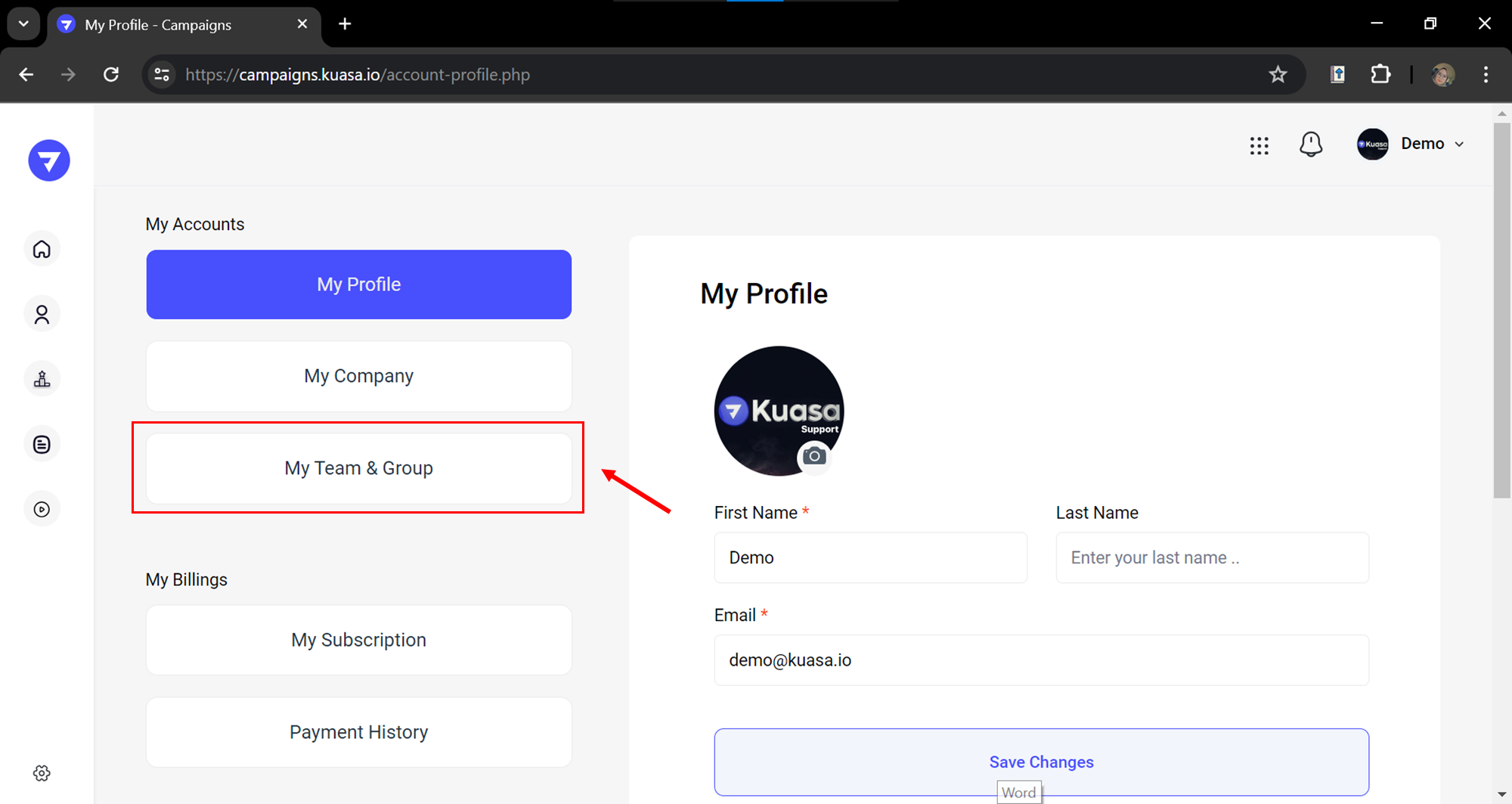
4. Click **My Team & Group** button.
5. Click **+ Add Team** button to add new team details.
6. Step 1: Fill in all the details for the new team member.\
\
Step 2: Select role for team member.
7. Step 1: You may assign WhatsApp Devices and Kuasa feature access for your new team member.\
\
Step 2: Click **Add New** button to save the changes.