> For the complete documentation index, see [llms.txt](https://tutorials.kuasa.io/getting-started/llms.txt). Markdown versions of documentation pages are available by appending `.md` to page URLs; this page is available as [Markdown](https://tutorials.kuasa.io/getting-started/kuasa-landing-page/shippings/easyparcel.md).
# EasyParcel
### Setup di EasyParcel
1. Login & Register EasyParcel here: [**https://easyparcel.com/my/en/**](https://easyparcel.com/my/en/)**.**
2. Click on the **Integration** button.
**Note:** If your EasyParcel account is using the **NextGen** version (with the **EasyConnect** button), please refer to the tutorial at this link from **Step 2 - 5** to obtain your API Key. After that, can proceed to the **'Setup in Kuasa'** part below.
3. Click **Add New Store**.
4. Click on the **Kuasa** logo.
5. Enter the information on the **Shop Name**, and **Shop URL**. As for the **Shop URL**, you only need to **copy one of your order form link and paste into Shop URL field**. Click the **Submit** button to save.
6. Open again the Integrations > Add New Store. Then, scroll down and you will see API Integration settings. Click **API Key**.
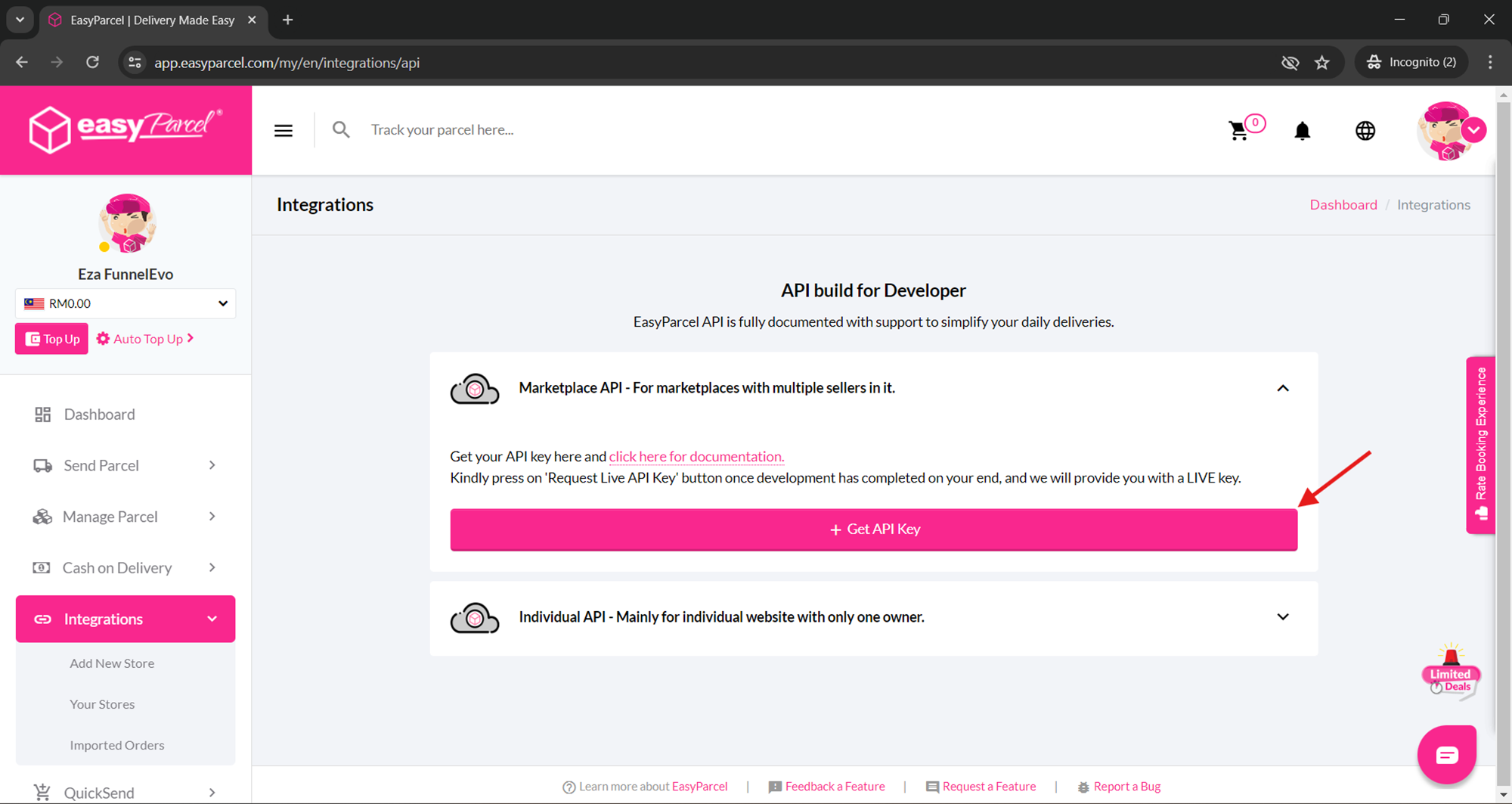
7. Click **+Get API Key**.
8. Fill in the details needed and click **Request API Key** button.
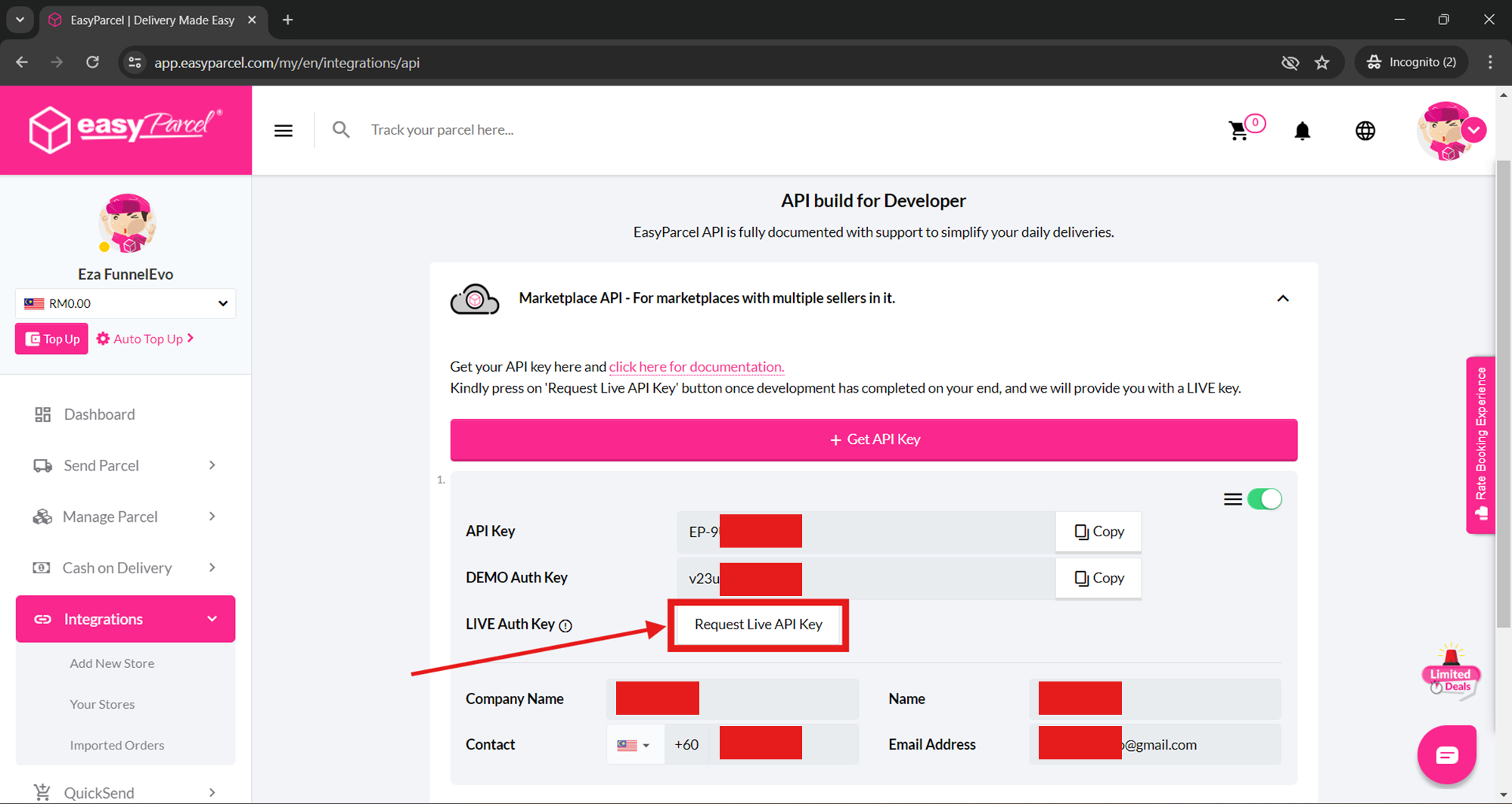
9. Click **Request Live API Key**.
10. Click **Yes**.
11. Click Copy for **API Key** and paste on your notepad.
### Setup in Kuasa (Setup Company Details)
1. Login to your account via [**https://landing-page.kuasa.io/**](https://landing-page.kuasa.io/)**.**
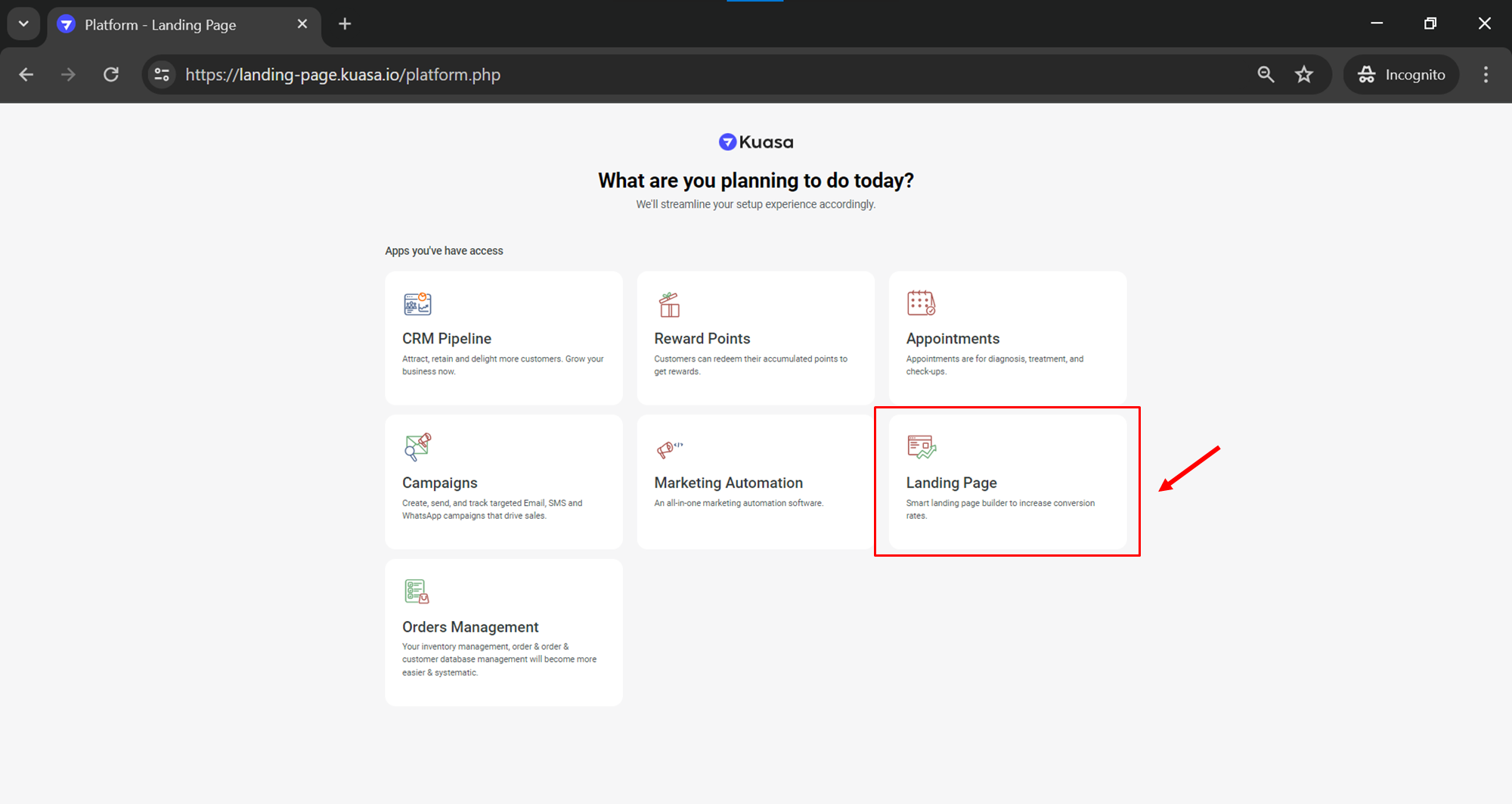
2. Click **Landing Page.**
3. Click **Settings**.
4. Click **My Company** and fill in your company information.
5. Click **Save Changes** to save your company information.
6. You can go to the next step which is **Setup EasyParcel** in Kuasa.
### Setup in Kuasa (Setup EasyParcel)
1. Login to your account via [**https://landing-page.kuasa.io/**](https://landing-page.kuasa.io/).
2. Click **Landing Page.**
3. Click **Settings**.
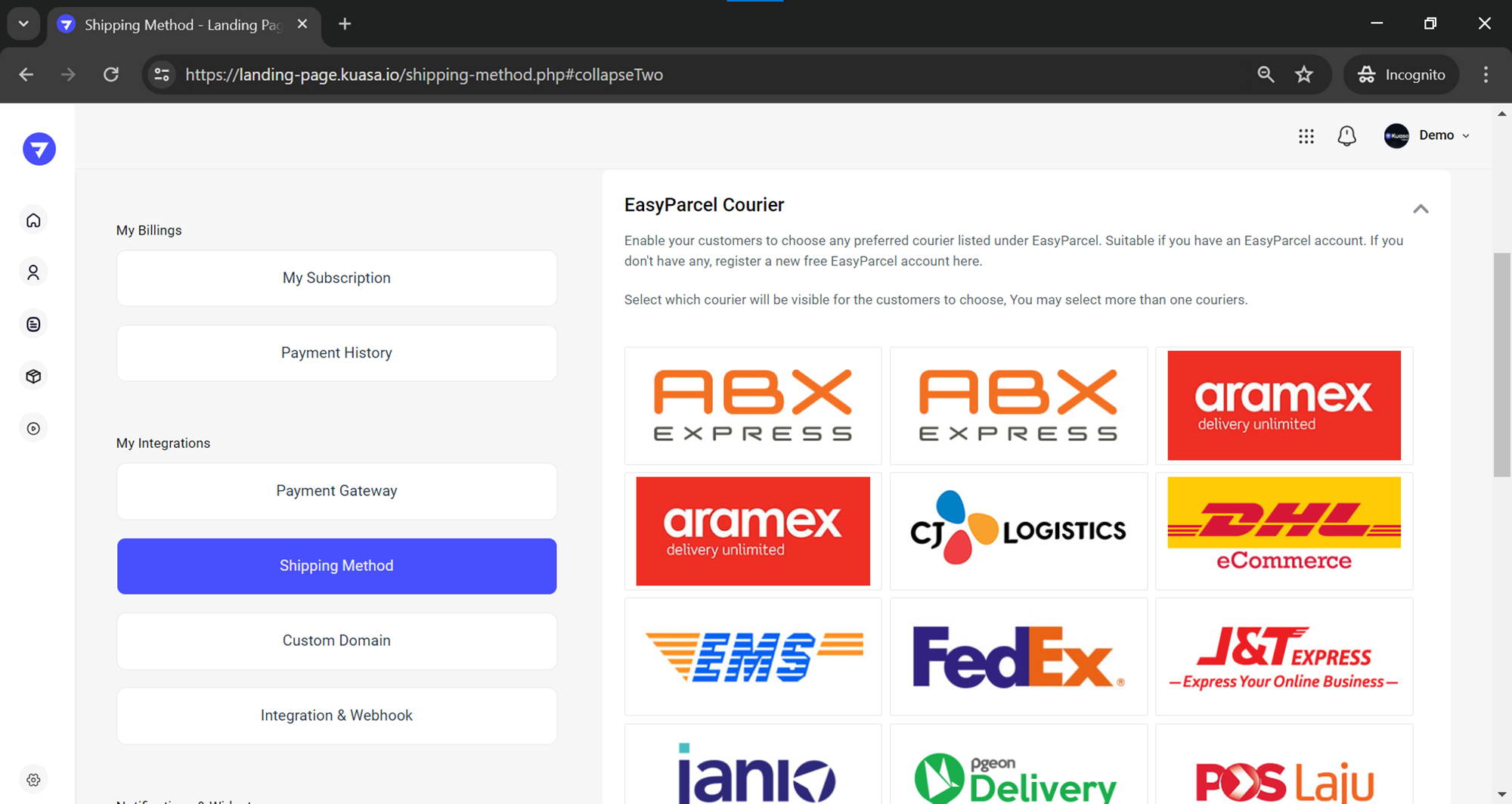
4. Click **Shipping Method**.
5. Make sure you are in the **EasyParcel** menu and select the couriers you are going to use.
6. Paste in the **API Key** that you copy from EasyParcel just now and make sure the toggle bar shows **ON**. Click **Save Changes** button to save the setting.
7. Congratulations! Your EasyParcel API Integration succeed!