> For the complete documentation index, see [llms.txt](https://tutorials.kuasa.io/getting-started/llms.txt). Markdown versions of documentation pages are available by appending `.md` to page URLs; this page is available as [Markdown](https://tutorials.kuasa.io/getting-started/generals/accounts/change-password.md).
# Change Password
If you are an existing Kuasa user, you can follow the steps we have provided to obtain a new password.
1. Log in to your account via .
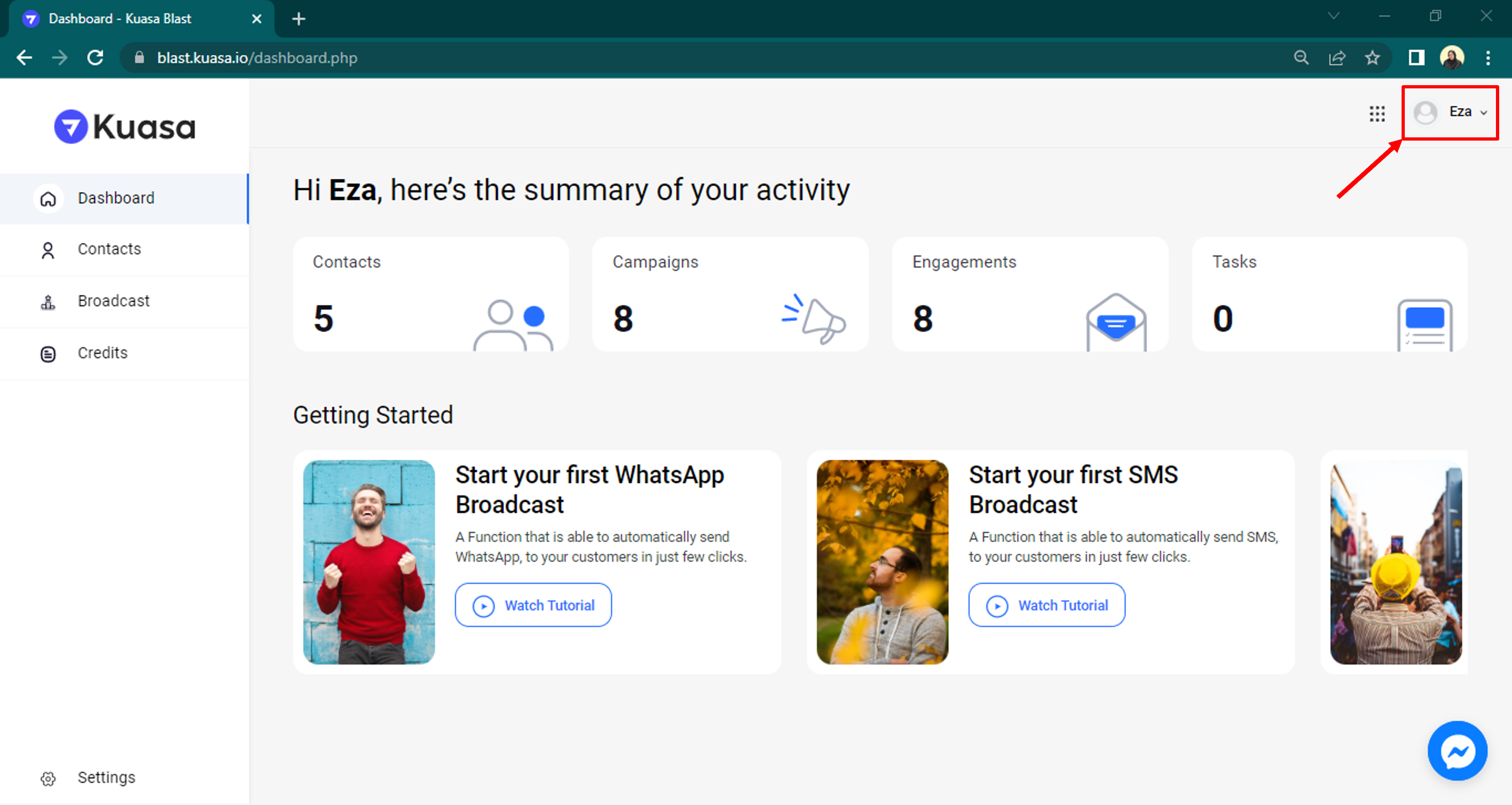
2. Click on your Profile.
3. Click on "My Account."
4. Enter your current password and the new password. Click on "Change Password."